Step 1: Log into your DrChrono account. Go to “Account” in the left navigation menu, and click “Account Settings”
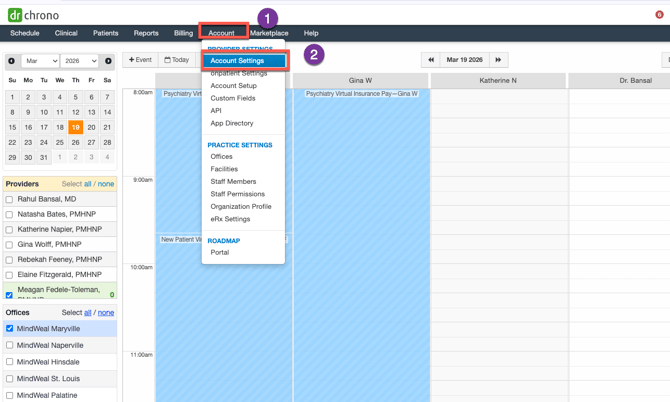
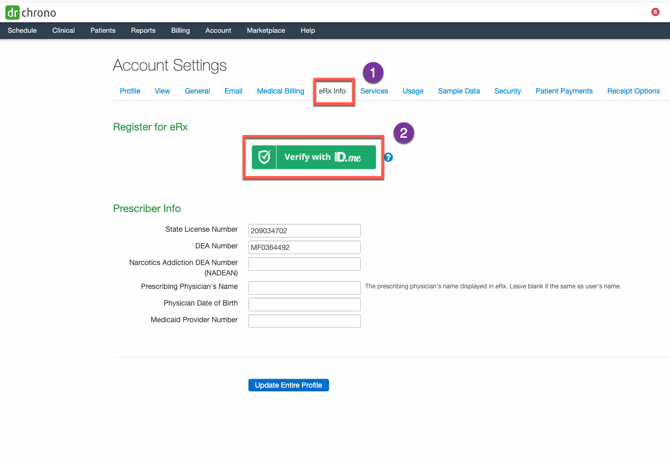
Step 2: Navigate to “eRx Info” and click “Verify with ID.me.”
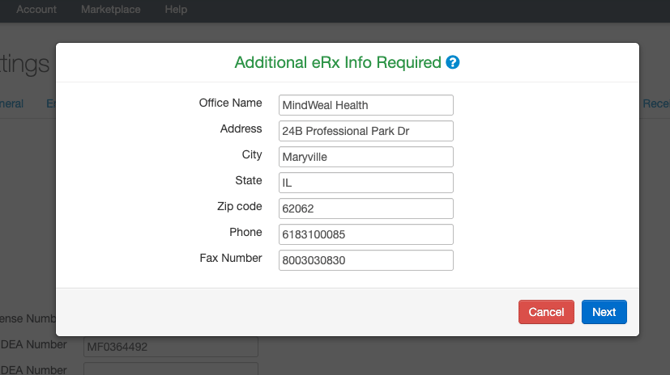
Step 3: In the pop-up window, enter the address listed on your controlled substance license. If that address does not match a MindWeal location, enter the MindWeal office where you will primarily work. If your primary location has not yet been finalized, use the MindWeal HQ address as shown in the image below.
Step 4: Sign in to your ID.me account if you already have one, or click “Create a Wallet” to set up a new account.
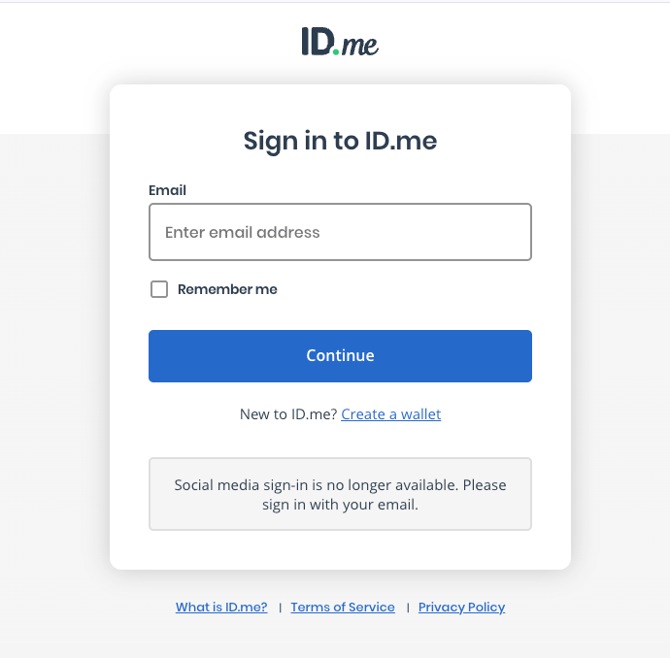
Step 5: If creating a new account, enter your email address, create and confirm your password, then proceed to verification.
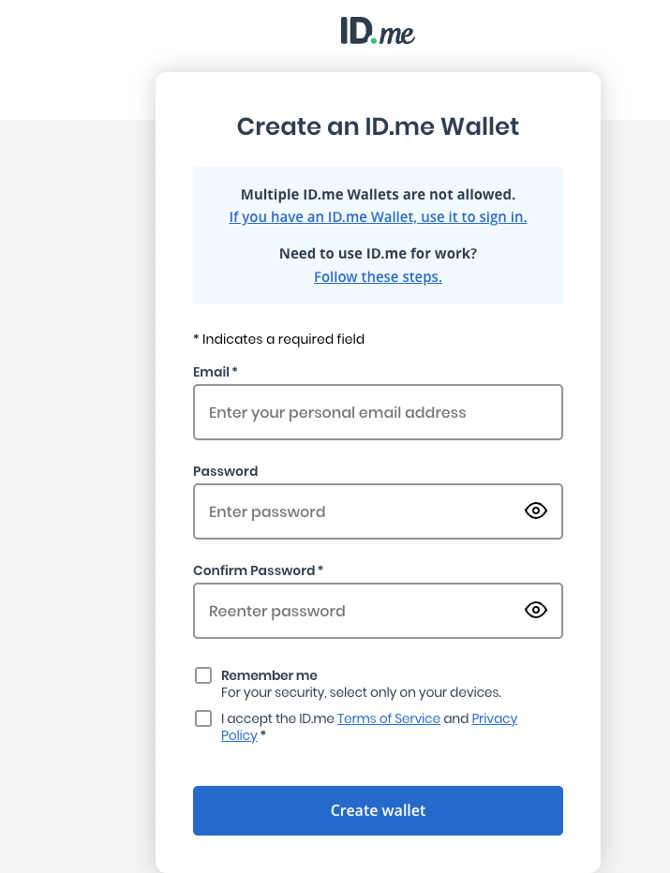
Step 6: Verify Your Email Address
ID.me will verify your identity and ask you to confirm that you control the email associated with the account; click “Yes” to continue.
Step 7: Securing Your Account
- You will be prompted to secure your account using the ID.me Authenticator app, which supports push notifications and code generation.
- Enter your phone number to receive a download link via text or email.
- Approve the sign-in request from your mobile device, then click “Continue” on the web screen.
Step 8: Verifying Your Identity
- Enter the code generated on your device to complete login.
- Select the type of photo ID to upload (driver’s license, state ID, passport, or passport card).
- Take or upload clear images of your government-issued ID.
- If uploading existing photos, you may be routed to an ID.me Trusted Referee for verification.
- Take a selfie using your device’s camera or webcam.
- Enter your Social Security Number to confirm your identity.
- Review your information, check the attestation box, and accept the Fair Credit Reporting Act terms.
- Click “Allow” to authorize ID.me to share your verified identity with DrChrono.
- If verification is unsuccessful, you will be guided to a Trusted Referee to complete the process.
Step 9: Verifying Your Medical Identity
- Click “Begin” to start the medical identity verification process.
- Enter your individual NPI number and click “Continue.”
- Review and confirm your medical identity details.
- Once completed, click “Allow” to share your verified medical identity with DrChrono.
- Selecting “Deny” will stop the process and prevent e-prescribing access.
Step 10: Completing the Setup
- After verification, ID.me will send your information to DrChrono.
- Your account will sync with Surescripts within 1–3 business days.
Once complete, you will be able to e-prescribe directly from DrChrono.
Next Steps
If you prescribe controlled substances, proceed with EPCS registration.
For official step-by-step instructions from DrChrono on this process, please refer to the article linked HERE