---
title: Adding or Updating Counselor Information on MindWeal
description: updating counselor, updating therapist
---
[Skip to content](https://kb.mindweal.com/en/publickb/updating-counselor#main-content)
English
Show submenu for translations
![mw-logo-svg (1).svg\]](https://kb.mindweal.com/hubfs/mw-logo-svg%20(1).svg)
Open main navigation
Close main navigation
- English
Show submenu for translations
Hello. How can we help you?
- There are no suggestions because the search field is empty.
1. [MindWeal](https://kb.mindweal.com/en/publickb?hsLang=en)
2. [MindWeal How-To: Onboarding, Features & Use](https://kb.mindweal.com/en/publickb/mindweal-how-to-onboarding-features-use?hsLang=en)
3. [Account Management](https://kb.mindweal.com/en/publickb/mindweal-how-to-onboarding-features-use?hsLang=en#account-management)
# Adding or Updating Counselor Information on MindWeal
- **Log in to the MindWeal platform.**
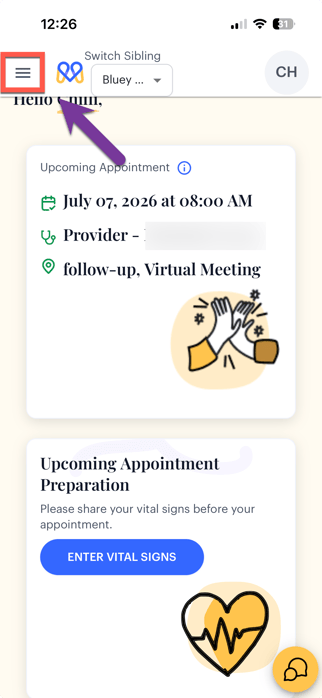
- **Access the “Main Navigation Menu” by clicking on the 3 horizontal bars in the upper left corner.**
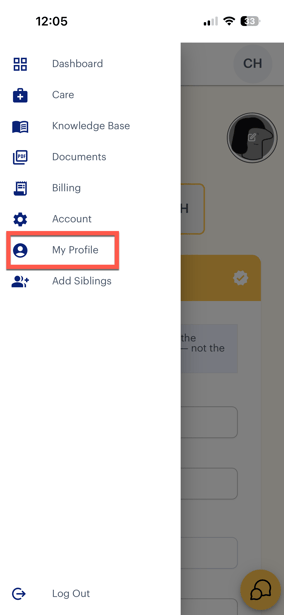
- **Click "My Profile" in Main Navigation Menu**
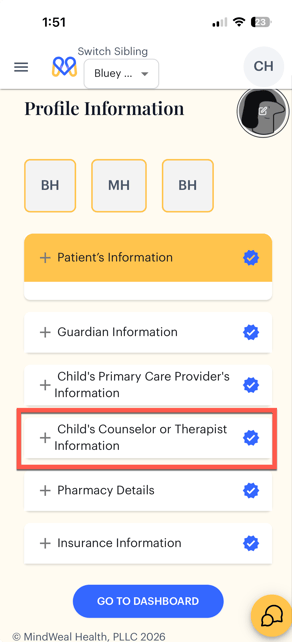
- **The Profile Page will open. Click “Child's Counselor or Therapist Information"**
#### **Add/Update Counselor Information**
- The section will expand. Start by adding or updating the counselor information by typing the Practice or Organization name.
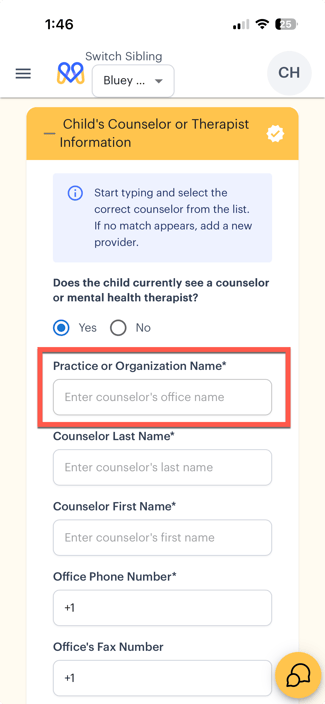
- As you begin typing, a dropdown list of matching practices or organizations will appear. If your counselor’s practice or organization appears in the dropdown, carefully select the correct option from the list. Selecting from the dropdown will automatically fill in the phone number and office fax number based on our records.
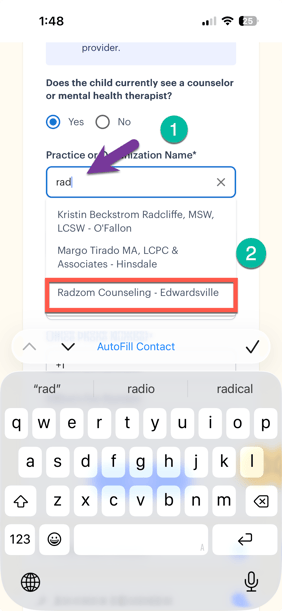
- If the practice or organization does not appear in the dropdown list, continue typing the full name. This will register it as a new provider, and you will need to manually enter the phone number and office fax number.
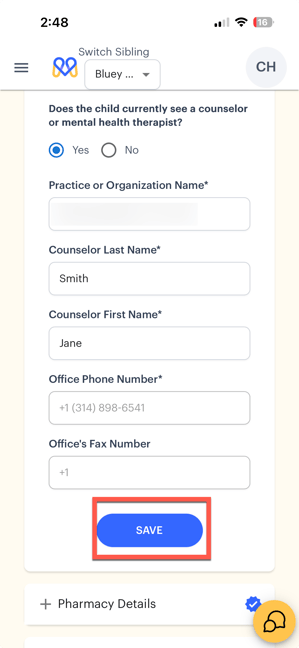
- You will still need to enter the counselor’s first and last name regardless of whether you select from the dropdown or add a new provider.
- After entering the required information, click “**Save**”
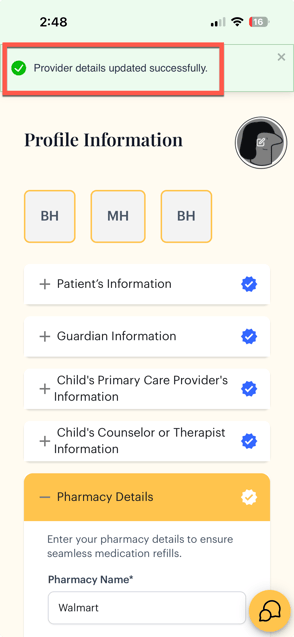
- This will save the counselor information, and a confirmation message will appear on the screen stating that the details have been updated successfully.
- [FAQs](https://kb.mindweal.com/en/publickb/faqs?hsLang=en)
- [MindWeal How-To: Onboarding, Features & Use](https://kb.mindweal.com/en/publickb/mindweal-how-to-onboarding-features-use?hsLang=en#main-content)
- [Onboarding](https://kb.mindweal.com/en/publickb/mindweal-how-to-onboarding-features-use?hsLang=en#onboarding)
- [Billing & Insurance](https://kb.mindweal.com/en/publickb/mindweal-how-to-onboarding-features-use?hsLang=en#billing-insurance)
- [Navigating Features](https://kb.mindweal.com/en/publickb/mindweal-how-to-onboarding-features-use?hsLang=en#navigating-features)
- [Account Management](https://kb.mindweal.com/en/publickb/mindweal-how-to-onboarding-features-use?hsLang=en#account-management)
- [Troubleshooting & Support](https://kb.mindweal.com/en/publickb/mindweal-how-to-onboarding-features-use?hsLang=en#troubleshooting-support)
- [Patient Education](https://kb.mindweal.com/en/publickb/patient-education?hsLang=en#main-content)
- [Patient Education: Psychiatry Medications](https://kb.mindweal.com/en/publickb/patient-education?hsLang=en#patient-education-psychiatry-medications)
- [Patient Education: Psychiatry Diagnoses](https://kb.mindweal.com/en/publickb/patient-education?hsLang=en#patient-education-psychiatry-diagnoses)
- [ADHD Testing](https://kb.mindweal.com/en/publickb/patient-education?hsLang=en#adhd-testing)
- [Patient Education: Other Topics](https://kb.mindweal.com/en/publickb/patient-education?hsLang=en#patient-education-other-topics)
- [MindWeal Therapy Network](https://kb.mindweal.com/en/publickb/mindweal-therapy-network?hsLang=en#main-content)
- [Start Here: Find the Right Counselor](https://kb.mindweal.com/en/publickb/mindweal-therapy-network?hsLang=en#start-here-find-the-right-counselor)
- [MindWeal Therapy Network in Chicagoland](https://kb.mindweal.com/en/publickb/mindweal-therapy-network?hsLang=en#mindweal-therapy-network-in-chicagoland)
- [MindWeal Therapy Network in St. Louis Metro](https://kb.mindweal.com/en/publickb/mindweal-therapy-network?hsLang=en#mindweal-therapy-network-in-st-louis-metro)
- [Other Counseling Referrals](https://kb.mindweal.com/en/publickb/mindweal-therapy-network?hsLang=en#other-counseling-referrals)
- [Referrals](https://kb.mindweal.com/en/publickb/referrals?hsLang=en#main-content)
- [Neuropsych Testing Referrals](https://kb.mindweal.com/en/publickb/referrals?hsLang=en#neuropsych-testing-referrals)
- [Comprehensive Autism Testing Referrals](https://kb.mindweal.com/en/publickb/referrals?hsLang=en#comprehensive-autism-testing-referrals)
- [Autism Services (including ABA therapy) Referrals](https://kb.mindweal.com/en/publickb/referrals?hsLang=en#autism-services-including-aba-therapy-referrals)
- [Occupational Therapy (OT) Referrals](https://kb.mindweal.com/en/publickb/referrals?hsLang=en#occupational-therapy-ot-referrals)
- [Speech Therapy Referrals](https://kb.mindweal.com/en/publickb/referrals?hsLang=en#speech-therapy-referrals)
- [Higher Level of Care Referrals (IOP, PHP, Residential)](https://kb.mindweal.com/en/publickb/referrals?hsLang=en#higher-level-of-care-referrals-iop-php-residential)
- [Eating Disorder Treatment Referrals](https://kb.mindweal.com/en/publickb/referrals?hsLang=en#eating-disorder-treatment-referrals)
- [Substance Use Treatment Referrals](https://kb.mindweal.com/en/publickb/referrals?hsLang=en#substance-use-treatment-referrals)
- [Additional Clinical & Support Services Referrals](https://kb.mindweal.com/en/publickb/referrals?hsLang=en#additional-clinical-support-services-referrals)
- [Resources](https://kb.mindweal.com/en/publickb/resources?hsLang=en#main-content)
- [Self-Guided Therapy](https://kb.mindweal.com/en/publickb/resources?hsLang=en#self-guided-therapy)
- [Medication Coupons](https://kb.mindweal.com/en/publickb/resources?hsLang=en#medication-coupons)
- [Scales & Questionairres](https://kb.mindweal.com/en/publickb/resources?hsLang=en#scales-questionairres)
- [Community Resources](https://kb.mindweal.com/en/publickb/resources?hsLang=en#community-resources)
- [Latest Updates](https://kb.mindweal.com/en/publickb/resources?hsLang=en#latest-updates)
- [Policies and Guidelines](https://kb.mindweal.com/en/publickb/policies-and-guidelines?hsLang=en#main-content)
- [Fee Schedules](https://kb.mindweal.com/en/publickb/policies-and-guidelines?hsLang=en#fee-schedules)
- [Policies](https://kb.mindweal.com/en/publickb/policies-and-guidelines?hsLang=en#policies)
- [Guidelines](https://kb.mindweal.com/en/publickb/policies-and-guidelines?hsLang=en#guidelines)
- [Referral Pages By Location](https://kb.mindweal.com/en/publickb/referral-pages-by-location?hsLang=en#main-content)
- [Autism Services Referrals (by location)](https://kb.mindweal.com/en/publickb/referral-pages-by-location?hsLang=en#autism-services-referrals-by-location)
- [OT Referrals (By location)](https://kb.mindweal.com/en/publickb/referral-pages-by-location?hsLang=en#ot-referrals-by-location)
- [Speech Therapy Referrals (by location)](https://kb.mindweal.com/en/publickb/referral-pages-by-location?hsLang=en#speech-therapy-referrals-by-location)
# MindWeal Health
[mailto:email@email.com](mailto:email@email.com)
Copyright © 2026, MindWeal Health