After every clinical visit, patient receives 3 emails:
- Treatment Summary Email. HERE is a sample of sent out email.
- Psycho-education about Diagnosis. This email will send education about "Active Diagnoses" listed in the patient chart post visit. HERE is a sample of sent out email.
- Psycho-education about prescribed medications. This email will send education about "Active Medications" in the patient chart post visit. HERE is a sample of sent out email.
This article only refers to those tasks that are completed by provider post visit that determines the information sent out in these emails.
Review & Update the Active Diagnosis list
Add a new Diagnosis
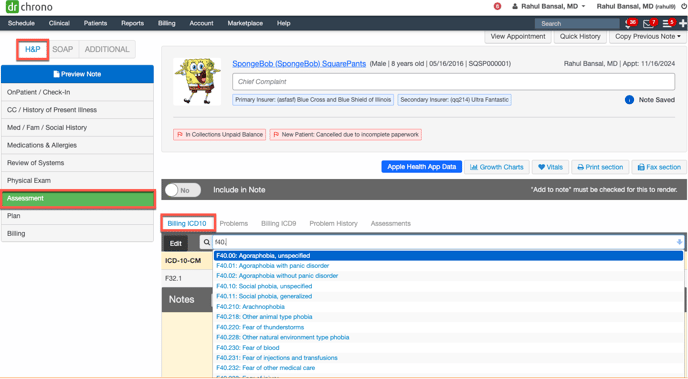
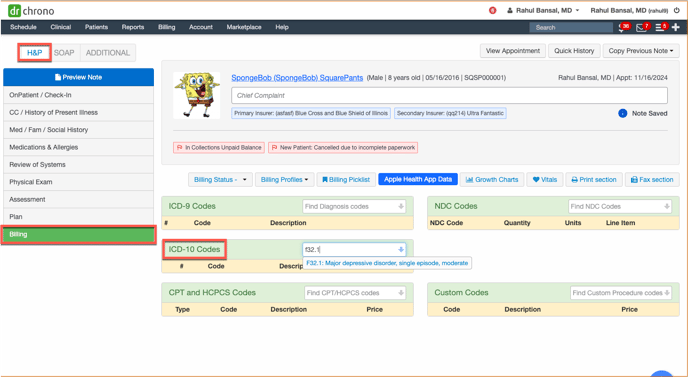
If patient was diagnosed with a new condition during the visit is not listed in active diagnoses, will need to be added to active diagnoses list. You can add them directly in active diagnosis tab but then you will not to add them again billing tab. Preferred method is to add them as Billing diagnoses so that they automatically get added in the Active diagnosis list. There are 2 ways to do it.
- Click H & P > Assessment > Billing ICD10 and add the diagnoses here
- Click H & P > Billing > ICD10 codes and add the diagnoses here
Update the Current Diagnoses
- Click H & P > Assessment > Problems
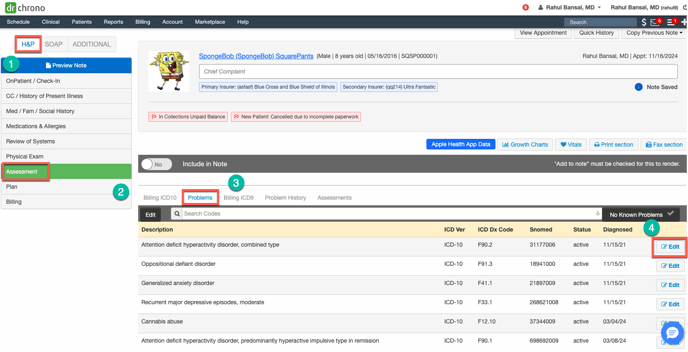
- Click Edit which will open a window as shown below
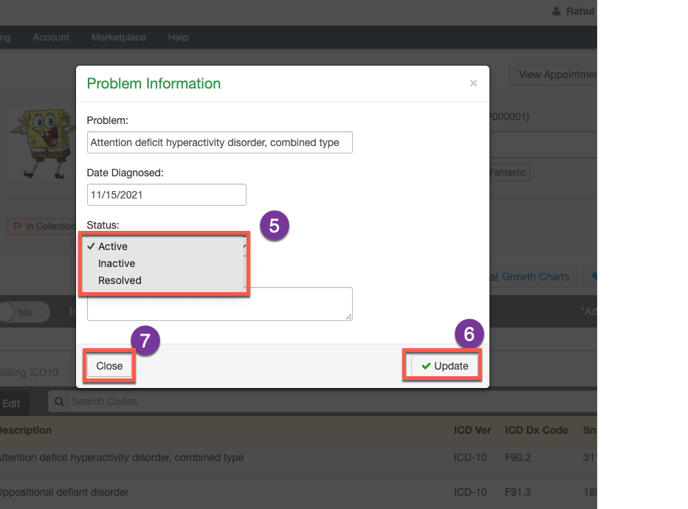
- Select the correct status of the diagnosis
- Click Update
- Click Close
Review & Update the Medication list
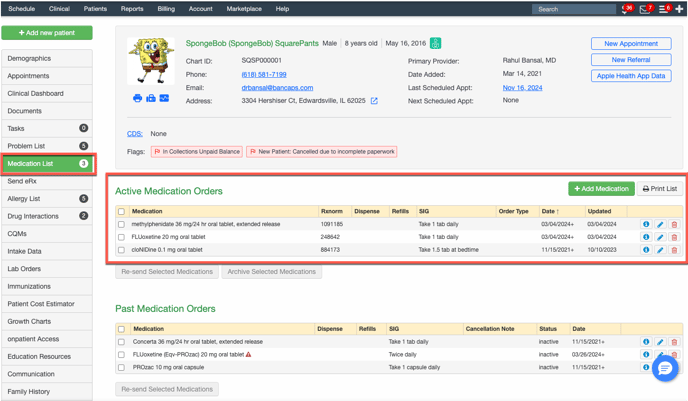
Click Medication List in left horizontal navigation menu of patient chart to access active patient list and make sure that list is accurate. If not, reconcile the list. Click HERE to learn how to reconcile the medication list accurately.
Review and Update Treatment Plan
Complete the Plan section of the Patient Note. The tasks listed here are only those that determines the content sent out in the post-visit treatment summary email.
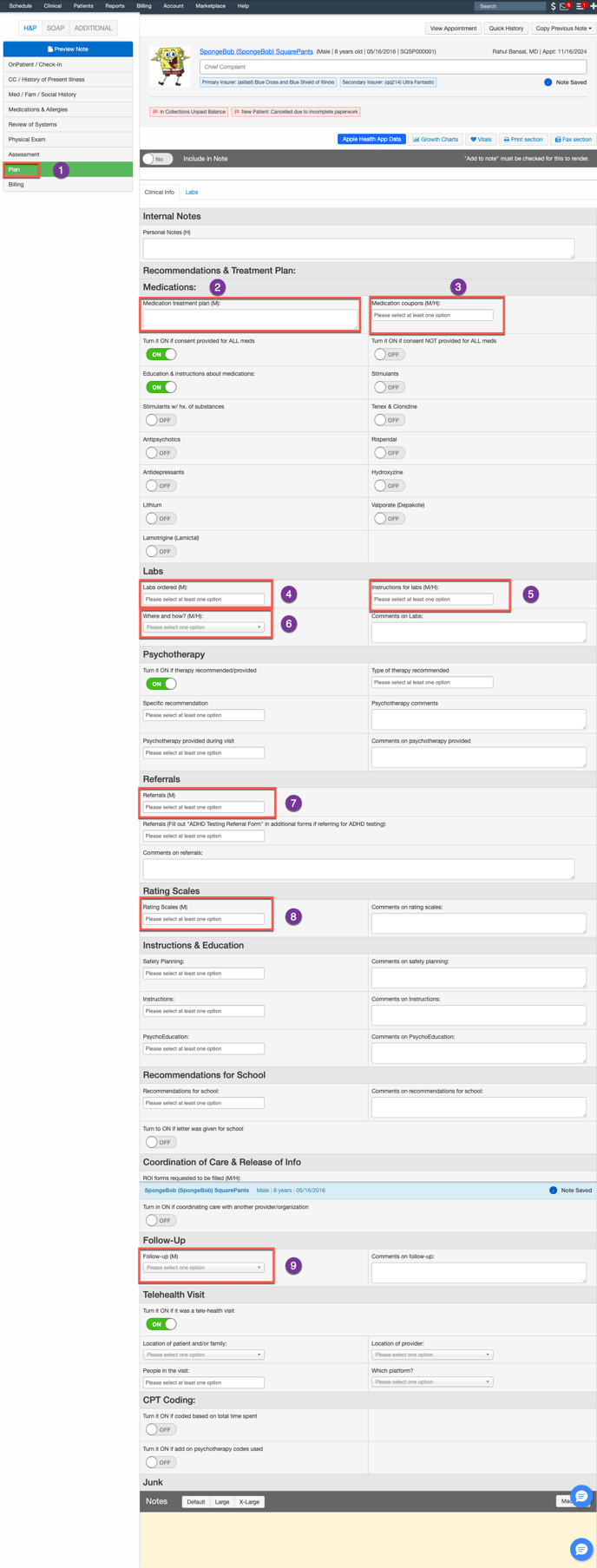
1. Plan Section of H&P: Click the plan section of H&P
2. Update Medication Treatment Plan: Enter the medication treatment plan. Patients will be able to view this plan in the MindWeal app.
Private Notes: If you need to write a note for yourself or include parts of the treatment plan you don't want the patient to see, use the "Personal Notes" field. Notes in this section are not visible to the patient, do not appear in the signed note, but remain accessible for your review or for other providers during future visits.
3. Medication Coupon: If you prescribed a medication that requires a Medication Coupon, select the name of the medication from the dropdown menu. Post-visit treatment summary email will send link to THIS page where they can access online links to these coupons.
4. Labs: Document all ordered labs by selecting them from the dropdown. A link to the lab list will be included in the post-visit treatment summary email, directing the patient to the app where they can view the ordered labs.
5. Instructions for Labs: Include relevant lab instructions by selecting them from the dropdown menu. These instructions will be included in the post-visit treatment summary email, with a link guiding the patient to the app to view and follow the instructions.
6. When & Where: Specify where the lab work should be completed and where the order was sent. This information will also be sent in the post-visit treatment summary email, with a link for the patient to review it in the app.
7. Referrals: Document any referrals to other providers by selecting from the dropdown. The post-visit treatment summary email will list all referrals, along with link to THIS page where they can access contact information of these providers.
8. Rating Scales: Document any rating scales you instructed the patient to complete by selecting them from the dropdown. The post-visit treatment summary email will list these scales along with link to THIS page where they can access online links to these rating scales
9. Follow-up: Specify the recommended follow-up timing. This information will be visible in the MindWeal app. This will serve as a reminder to the patient to schedule a follow-up appointment if it wasn’t already scheduled during the visit.
Preview and sign the note
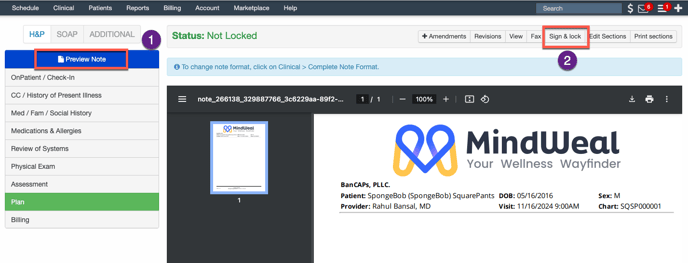
After completing all the fields of the note, preview the note & sign it.
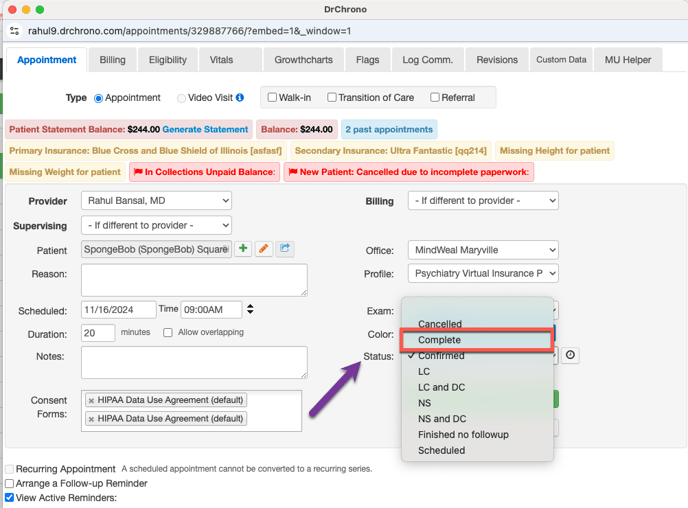
Change the appointment status to Complete in DrChrono
Update the appointment status in DrChrono to "Complete" to ensure the three emails mentioned above are sent automatically. Steps to Update Appointment Status:
- Click Appointments
- Click Edit Appointment
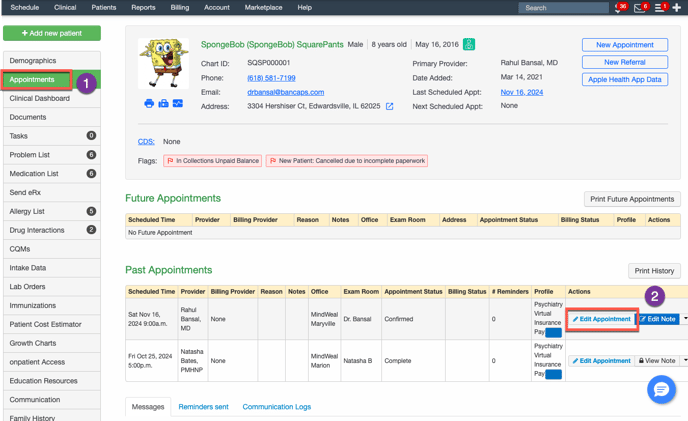
3. Select the status of Appointment as Complete from the Dropdown