![mw-logo-svg (1).svg]](https://kb.mindweal.com/hubfs/mw-logo-svg%20(1).svg)
Managing your payment method on the MindWeal platform is simple and secure. MindWeal partners with Stripe, a PCI-certified payment processor, to ensure your payment details are handled safely and seamlessly. This guide will walk you through each step to add or update your payment method, with screenshots for easy reference.
Accessing Stripe Portal from MindWeal Platform
From Your Dashboard
If you haven’t added your payment details yet, a tile will appear on your dashboard prompting you to add a credit card. Click the “Add Credit Card” button on this tile. You will then be redirected to Stripe’s secure portal, where you can safely add and manage your payment details.
Click HERE to learn how to add, update, or manage your payment methods within Stripe.
From Billing Section
If the payment tile is not visible on your dashboard:
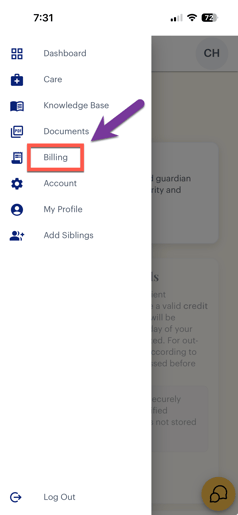
- Tap the three horizontal lines (☰) in the upper-left corner of the screen to open the navigation menu.

- Select “Billing” from the menu.
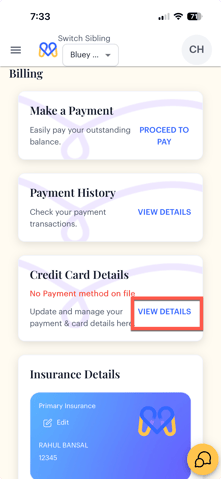
- Navigate to “Credit Card Details” & click "View Details" This will take you to Stripe’s portal.
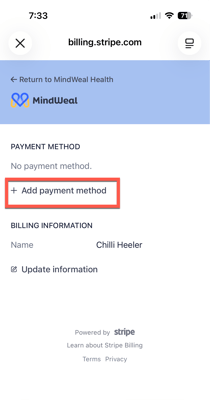
Adding Payment Method in Stripe
If you already have a payment method added and only want to learn how to update your payment details (such as name or billing address) or add additional payment methods, click the appropriate links below.
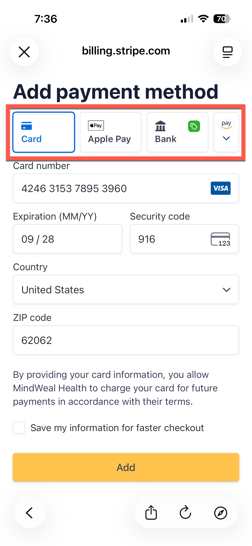
- Click “Add Payment Method”. Begin the process by selecting this button.
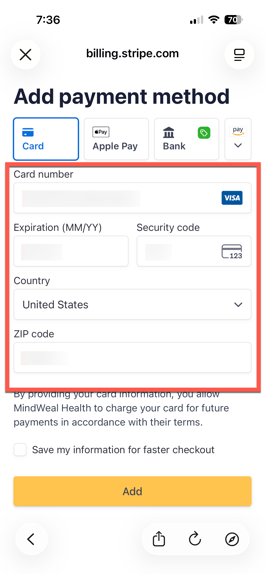
- Choose Your Payment Method: Select from the following payment options: Credit Card, Bank Account, Amazon Pay, Cash App Pay
-
Below the payment method details, you will see a checkbox that says “Save my information for faster checkout.” This option is automatically checked. We recommend unchecking it for the smoothest experience with automatic payments on MindWeal.
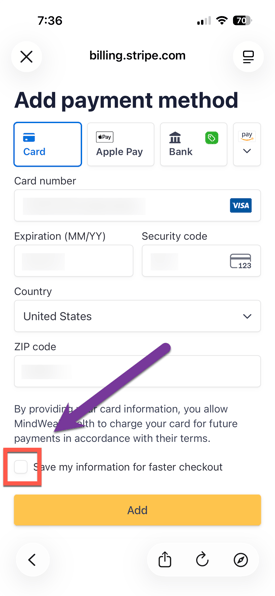
TIP: This feature is called Link by Stripe and creates a separate account that stores your payment information for faster checkout across different websites and apps. However, in some cases, cards saved through Link may not process automatic payments correctly within the MindWeal platform. Unchecking this option may help reduce payment issues and improve reliability for future automatic charges.
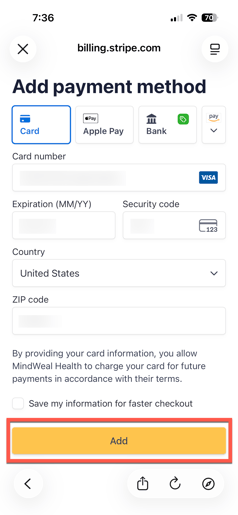
- After entering your payment details, click “Add” to save the method.
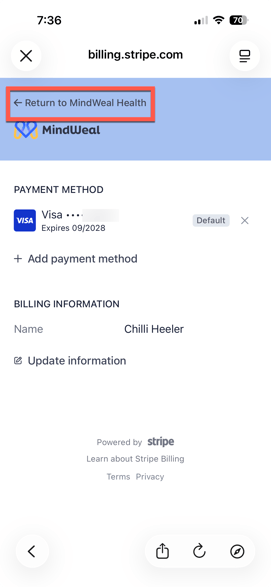
- Your newly added payment method will now appear in the list, as shown in the screenshot. Click Return to MindWeal Health to return back to MindWeal platform
Updating Your Payment Details: Edit Name & Billing Address
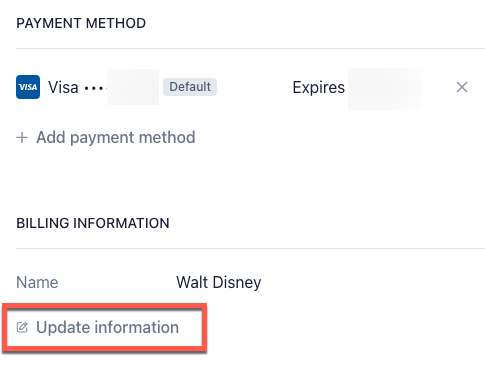
To update your name or billing address, click "Update Information" within Stripe.
Manage Multiple Payment Methods
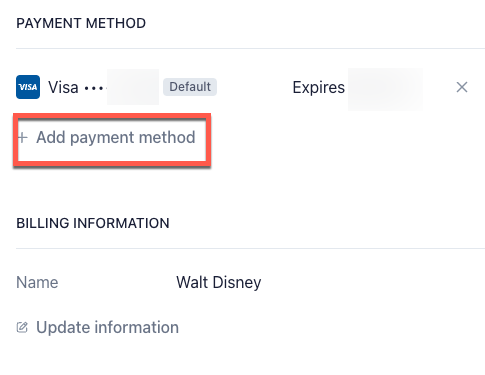
- You can add additional payment method by clicking "Add Payment Method"
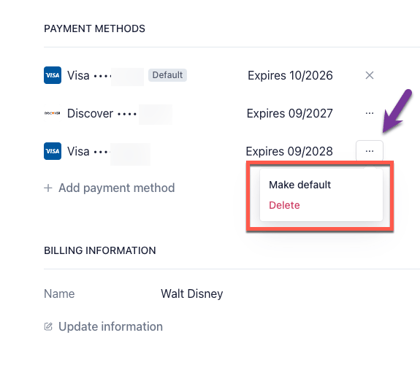
- By clicking the 3 dots in front of payment method as shown in the image, you can do the following:
- Delete a payment method
- Select a default payment method or switch the default method