![mw-logo-svg (1).svg]](https://kb.mindweal.com/hubfs/mw-logo-svg%20(1).svg)
- Log in to the MindWeal platform.
-
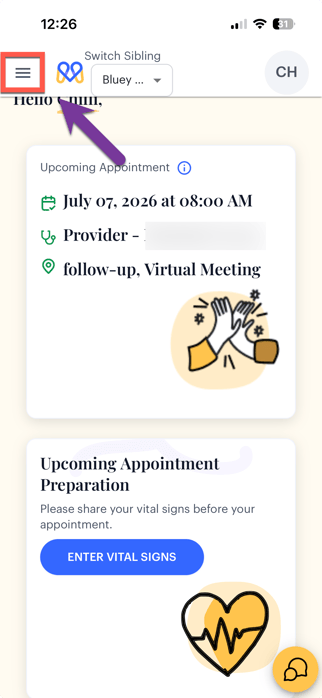
Access the “Main Navigation Menu” by clicking on the 3 horizontal bars in the upper left corner.
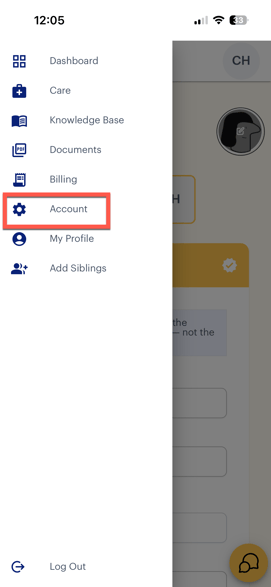
- Click "Account" in Main Navigation Menu
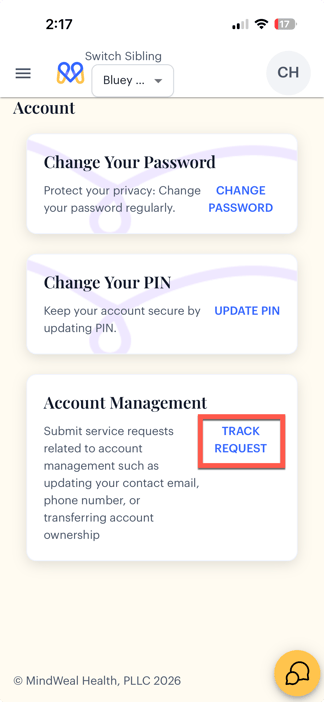
- The Account Page will open. Click “Track Request" under Account Management section.
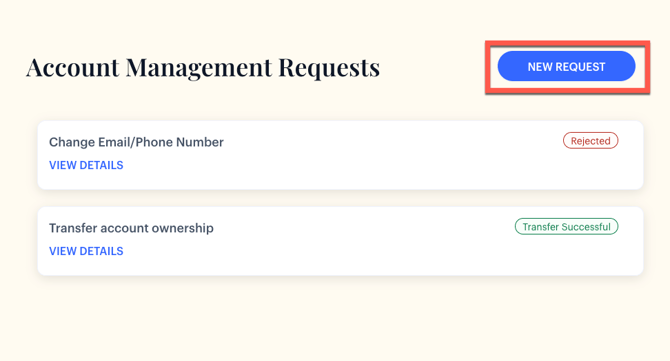
- A window will appear showing the history of your previous account management requests. Click "New Request."
- A new window will appear as shown in the image below. Click "Update Email/Phone Number."

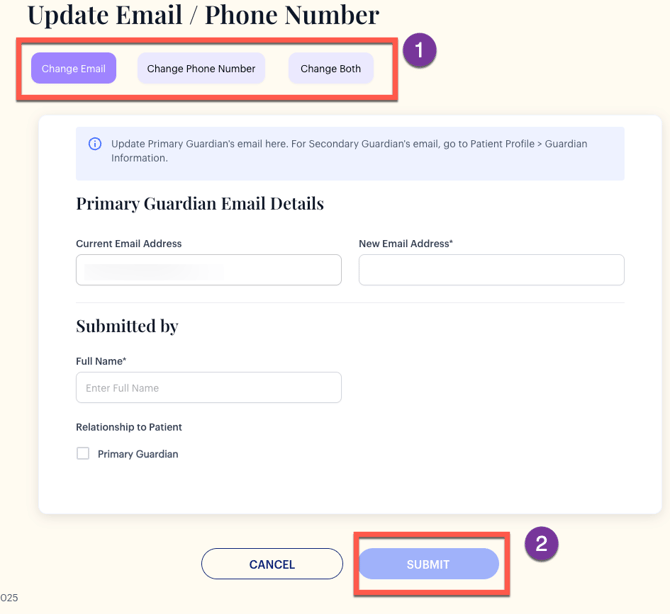
- A form will appear, as shown in the image. Select whether you wish to change your email, phone number, or both.
- Fill out the form with your new email, phone number, or both and click "Submit."
- A confirmation message will appear, notifying you that your request has been submitted successfully.
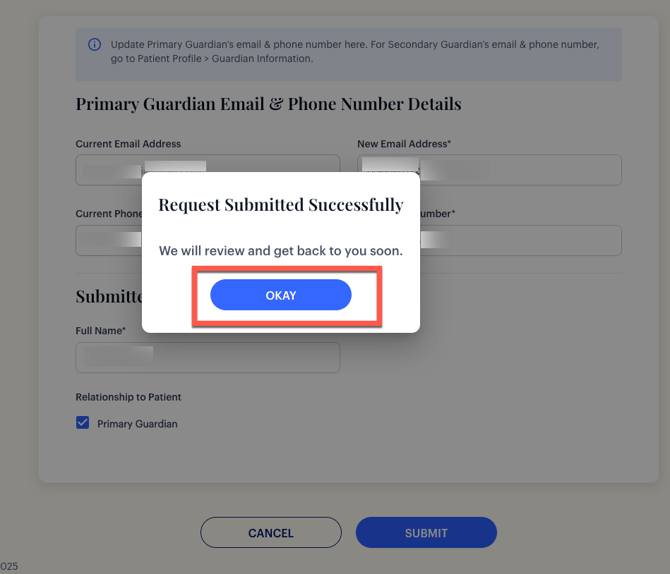
- Once you click "OKAY," you'll be redirected to the Account Management page, where you can track your request's status and view your request history.

- You can return to this page anytime to track the progress of your request by navigating to My Profile > Account Management.