![mw-logo-svg (1).svg]](https://kb.mindweal.com/hubfs/mw-logo-svg%20(1).svg)
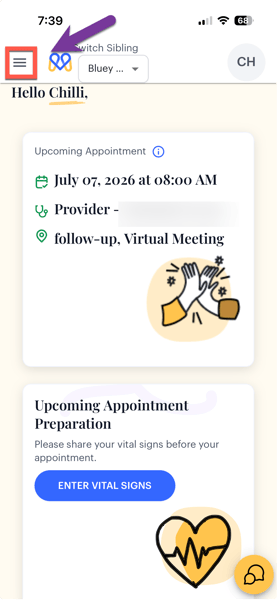
Open the Navigation Menu
Tap the three horizontal lines in the upper left corner to access the navigation menu.
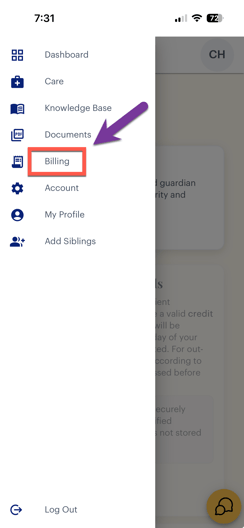
Go to Billing
- Select "Billing" to open your billing page.
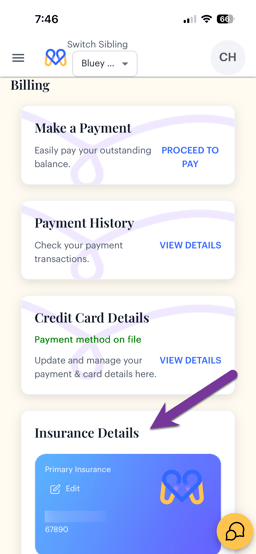
- Scroll down to the "Insurance Information" section.
-
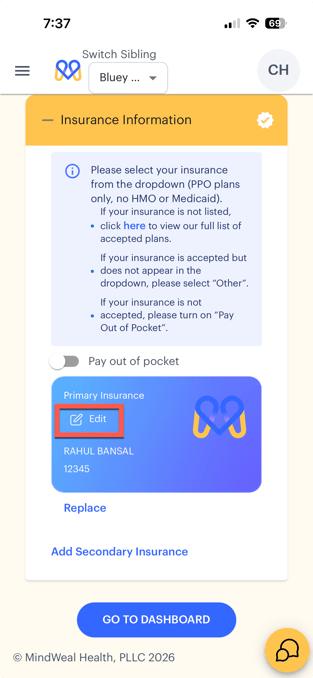
Click “Edit.” This will take you to the Insurance Section, where you can view, edit, or replace your primary insurance, as well as view, edit, add, or delete your secondary insurance.
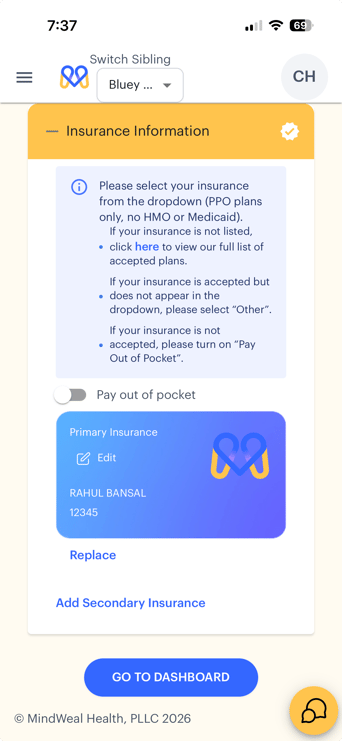
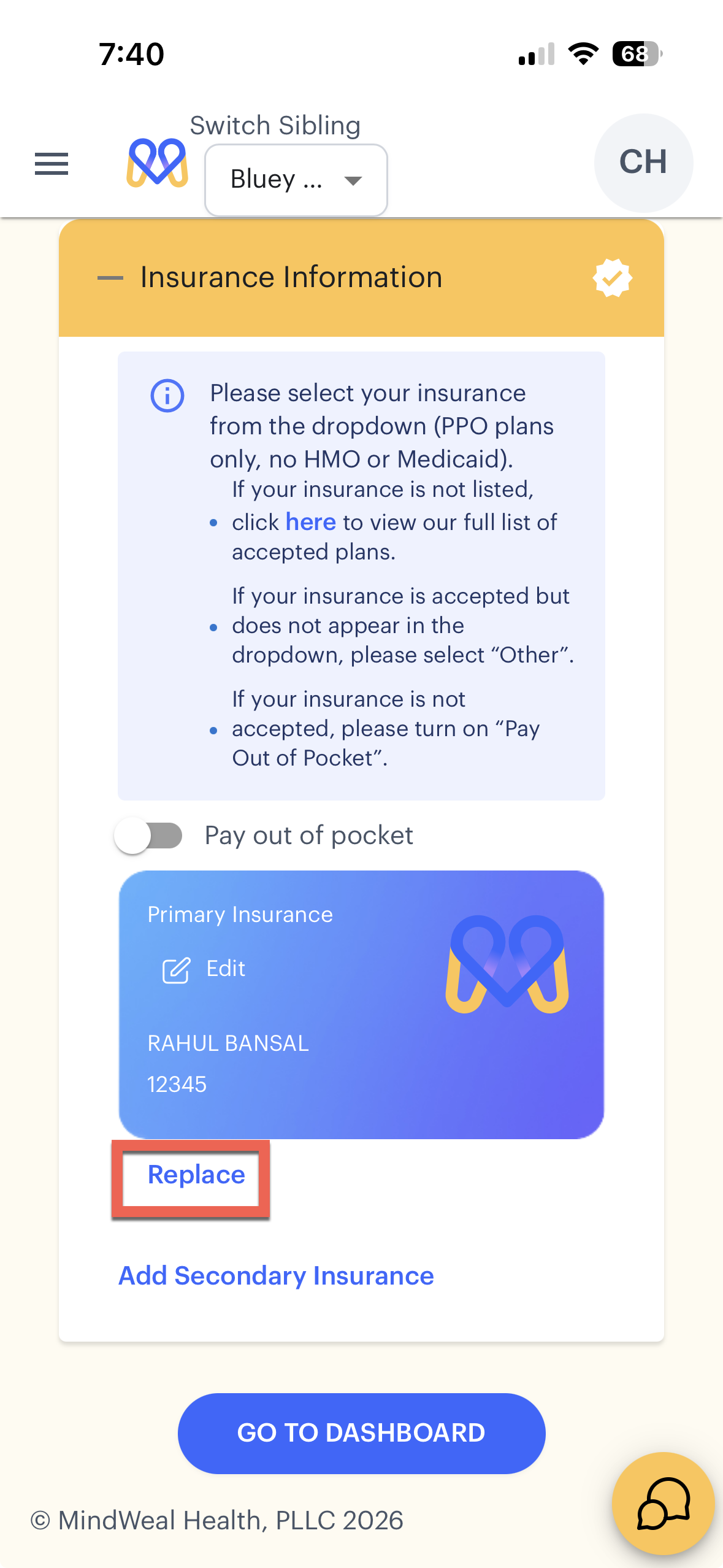
- To edit your primary insurance, click “Edit” and to replace your primary insurance, click “Replace” as shown below
TIP: If you are making minor changes like updating member ID, Group No, Name of Subscriber, Birthdate of subscriber choose edit, if you need to make a change that new cards need to be uploaded, choose replace
 |
 |
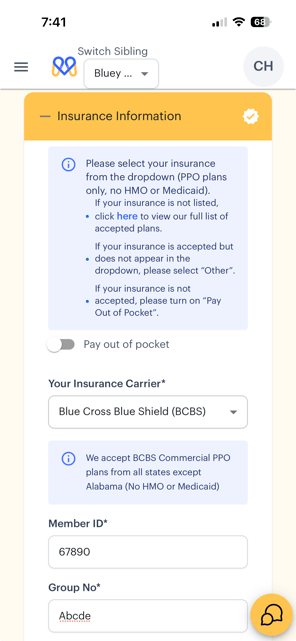
- Enter updated insurance details and upload photos of the front and back of your insurance card if they need update.
- Click "Save" to confirm your changes.
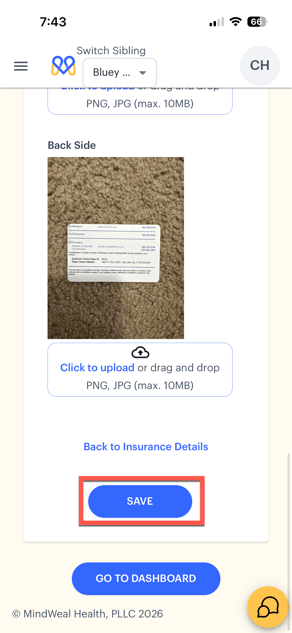
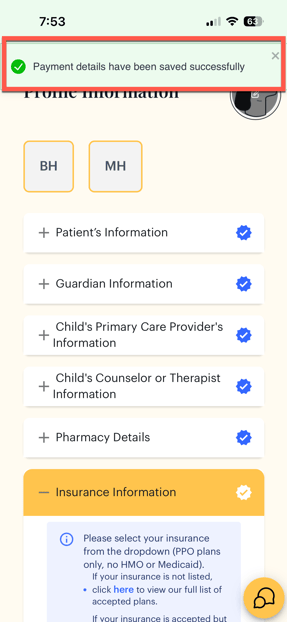
A confirmation message will appear indicating that your details have been saved successfully, as shown below.
Return to Dashboard
When finished, click "Go to Dashboard" to return to the main screen.