![mw-logo-svg (1).svg]](https://kb.mindweal.com/hubfs/mw-logo-svg%20(1).svg)
Step 1: Access Guardian Information in Patient Profile
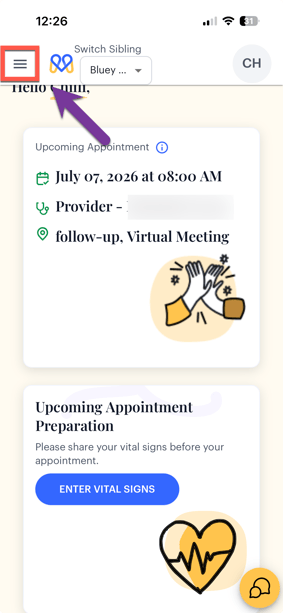
- Tap the three horizontal lines in the upper left corner to access the navigation menu.
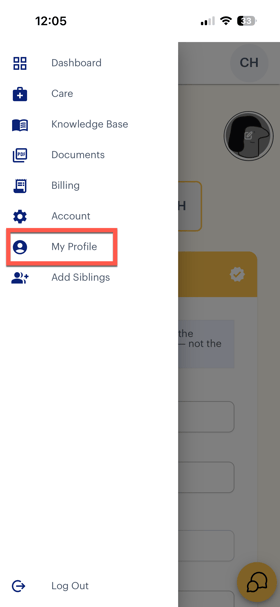
- Select "My Profile" to open your profile page.
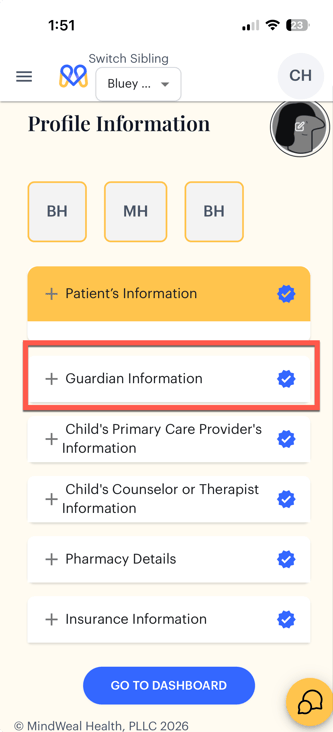
- This will open the Profile Page as shown below. Click "Guardian Information"
Update Guardian Information
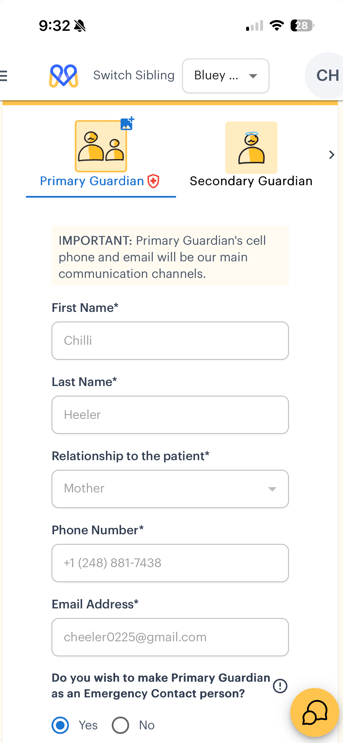
Clicking “Guardian Information” expands the section, as shown in the image below.
Updating Primary Guardian Information
The following Primary Guardian information cannot be changed from this section. If any of the information related to Primary Guardian needs to be changed, an Account Management Request must be created so that MindWeal staff can update it for you. Click THIS article to learn how to create an Account Management Request.
Updating Secondary Guardian Information
Click “Secondary Guardian” as shown in the image below.
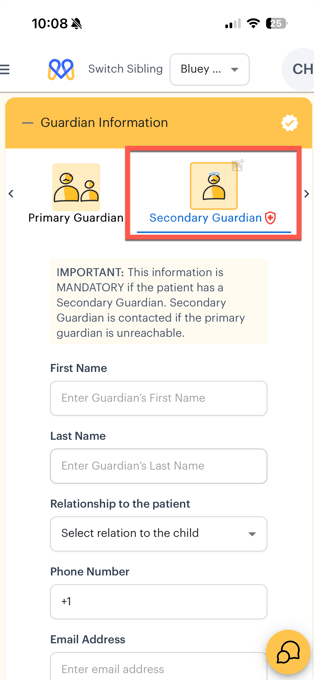
To Add a Secondary Guardian
- Enter the Secondary Guardian information.
- Click Save.
-
The information will be saved, and a confirmation message will appear on the screen confirming that the details were updated successfully.
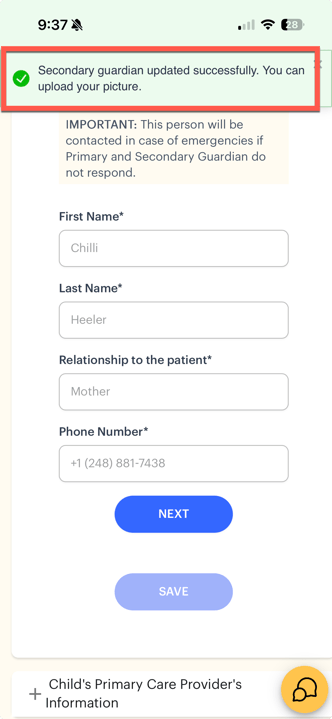
To Update Existing Secondary Guardian Information
-
Secondary Guardian information cannot be edited directly. Click Delete to remove the current Secondary Guardian information.
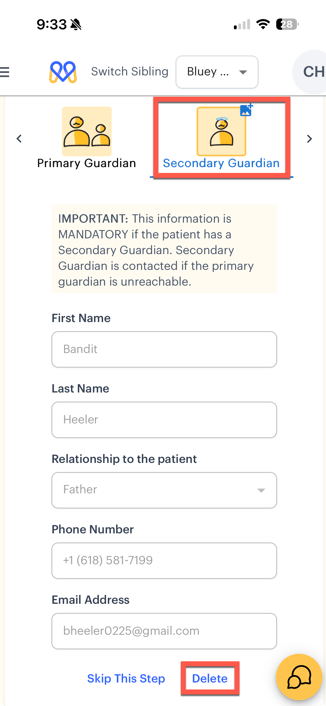
- Enter the new secondary guardian information.
- Click Save.
-
The updated information will be saved, and a confirmation message will appear on the screen confirming that the details were updated successfully.
Updating Emergency Contact Information
-
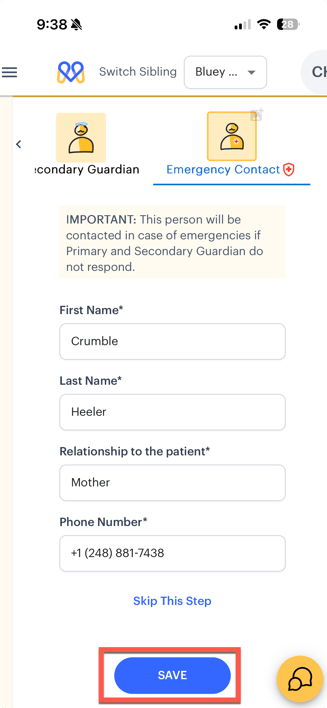
Click the arrow on the right side of the Secondary Guardian section to scroll sideways and access the Emergency Contact section.
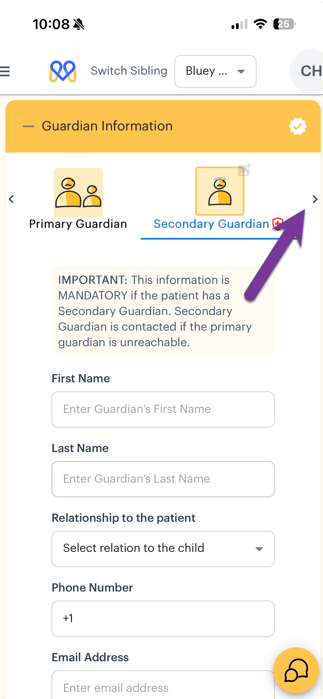
-
Update the Emergency Contact information and click Save.
-
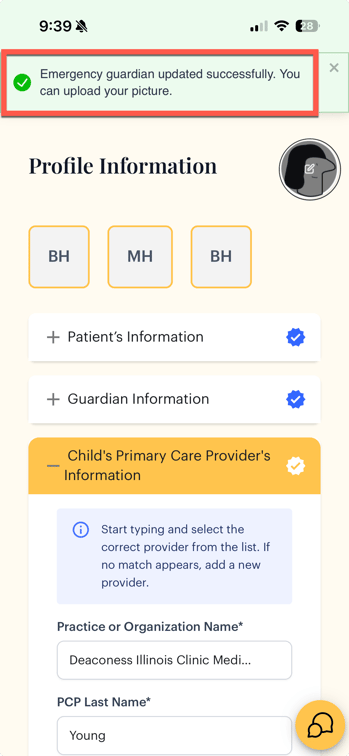
The updated information will be saved, and a confirmation message will appear on the screen confirming that the details were updated successfully.
If Primary Guardian Is Selected as Emergency Contact
If you previously selected “Yes” for making the Primary Guardian the Emergency Contact and now wish to use a different Emergency Contact:
- Go to the Primary Guardian section.
- Change the answer to “No” for the question:
“Do you wish to make Primary Guardian as Emergency Contact?” - Click Save.
- Navigate back to the Emergency Contact section.
- Enter the new Emergency Contact information and click Save.